
This sub-section is used to create a new product variant, defining its name and available options.
Access: From “Shop Management” > “Products” > “Variants,” choose “Add Variant”.
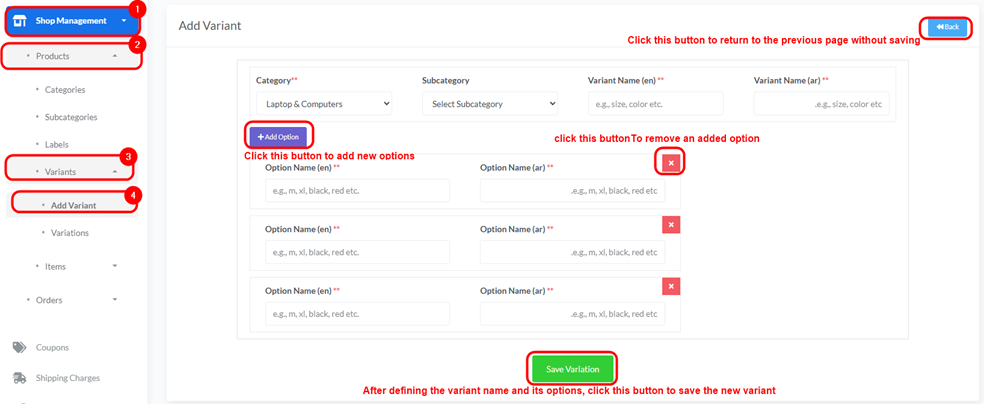
- Category:
- Description: Select the main category to which this variant will apply.
- How to Select: Choose the category from the dropdown list.
- Subcategory:
- Description: Select the subcategory to which this variant will apply (optional, based on category selection).
- How to Select: Choose the subcategory from the dropdown list.
- Variant Name (en):
- Description: Enter the variant name in English (e.g., “size,” “color”).
- Variant Name (ar):
- Description: Enter the variant name in Arabic (e.g., “حجم,” “لون”).
- Add Option:
- Description: Click this button to add new options for the variant (e.g., “S,” “M,” “L” for size; “Red,” “Blue” for color).
- Option Name (en): Enter the option name in English (e.g., “m,” “xl,” “black,” “red”).
- Option Name (ar): Enter the option name in Arabic (e.g., “م,” “XL,” “أسود,” “أحمر”).
- Delete Option (Red X icon): To remove an added option.
- Save Variation:
- After defining the variant name and its options, click this button to save the new variant.
- Back:
- Click this button to return to the previous page without saving.


