
Access: From “Pages” > “Home Page” > “Hero Section” > “Sliders” > select “+Add Slider”.
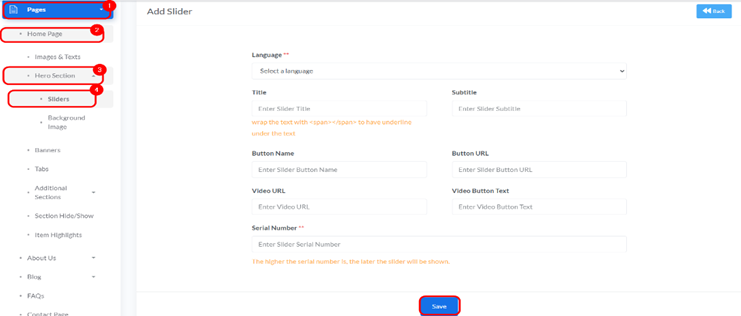
- To introduce a new rotating image and message to your homepage’s hero section, use the form at the top of this page. Fill in the following fields:
- Language: (Crucial) Select the language for which this slider is intended. The slider will only be visible to users viewing your website in the language you select here. For example, if you select “English”, this slider will only appear when the user’s interface language is set to English.
- Title: Enter a concise and captivating main heading for your new slider. This will be the most prominent text displayed on the slider.
- Subtitle: Provide a supporting, descriptive line of text. This can offer more context, highlight a key benefit, or serve as a preliminary call to action related to the slider’s content.
- Link: Input the complete URL (e.g., https://yourstore.com/main-page) where visitors should be redirected when they click on the overall slider area (if no specific button is clicked). Ensure the link is accurate and leads to the intended page.
- Button Name: Enter the text that will appear on a clickable button within the slider (e.g., “Shop Now”, “Learn More”). This provides a direct call to action.
- Button URL: Provide the specific URL (e.g., https://yourstore.com/products/new-collection) to which users will be directed when they click the “Button Name” button. This can be different from the main slider “Link”.
- Image: Upload the visual background or main image for your slider. Select a high-quality image that is visually appealing and relevant to your message. It is highly recommended to upload images with the specified dimensions (e.g., 1920×600 px) to ensure optimal display across various screen sizes without distortion or pixelation.
- Serial Number: Enter a numerical value to determine the display order of this slider relative to others. Sliders with lower serial numbers typically appear first.
- After filling in all details, click the “Add Slider” button to save your new slider configuration. It will then appear in the “Managing Existing Sliders” table below and, if active and the correct language is selected by the user, will begin rotating on your homepage in the specified order.


