
Overview: This sub-section allows you to manage the static promotional banners displayed on various sections of your homepage. These banners are typically images with layered text (title, subtitle, descriptive text), a clickable button, and a link, designed to highlight specific products, categories, or promotions. They occupy fixed positions and can be ordered to optimize their visibility and impact.
Access: From the main navigation menu on the left, click on “Pages”, select “Home Page” from the drop-down, and then click on the “Banners” tab.
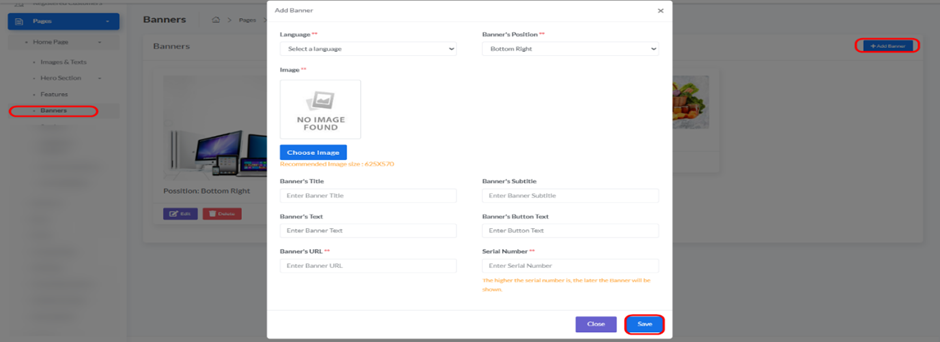
- To add a new banner image with detailed content to your homepage, use the form at the top of this page. Fill in the following fields:
- Image: Upload the image file for your banner. Select a high-quality image that is visually appealing and relevant to your promotion. While not explicitly stated in the UI, it’s recommended to use consistent dimensions for banners in the same section to ensure a harmonious layout.
- Link: Input the complete URL (e.g., https://yourstore.com/category/sale-items) where visitors should be redirected when they click on the banner’s image or primary clickable area. Ensure the link is accurate and leads to the intended page.
- Banner’s Title: Enter a concise and engaging main title that will be displayed as an overlay on the banner image. This is the primary heading for the banner.
- Banner’s Subtitle: Provide a shorter, supporting line of text that appears on the banner, offering more context or a secondary message.
- Banner’s Text: Enter a more detailed body of text or a longer description that will be displayed on the banner. This allows for richer textual content beyond just a title and subtitle.
- Banner’s Button Text: If your banner includes a call-to-action button, enter the text that will appear on it (e.g., “Shop Now”, “Discover More”). This text should clearly indicate the button’s purpose. (Note: The button’s URL might be the same as the primary “Link” or managed implicitly by the system.)
- Banner’s Position: Select or input the designated position where this banner should appear on the homepage (e.g., “Top Banner”, “Middle Section Left”, “Bottom Ad Slot”). This ensures the banner is displayed in its intended layout area.
- Serial Number: Enter a numerical value to determine the display order of this banner relative to others within its specific “Position” on the homepage. Banners with lower serial numbers typically appear first in their respective sections.
- Language: (Crucial) Select the language for which this banner is intended. The banner will only be visible to users viewing your website in the language you select here. This ensures your banners are localized correctly for different audiences.
- After filling in all details, click the “Add Banner” button to save your new banner configuration. It will then appear in the “Managing Existing Banners” table below and, if the correct language is selected by the user, will be displayed on your homepage in the specified position and order.


