
Overview: This section allows you to manage testimonials that may appear on your “About Us” page, showcasing customer reviews and positive experiences.
Access: To access the “Testimonials” settings, follow this path in your dashboard: “Pages” -> “About Us” -> “Testimonials”.
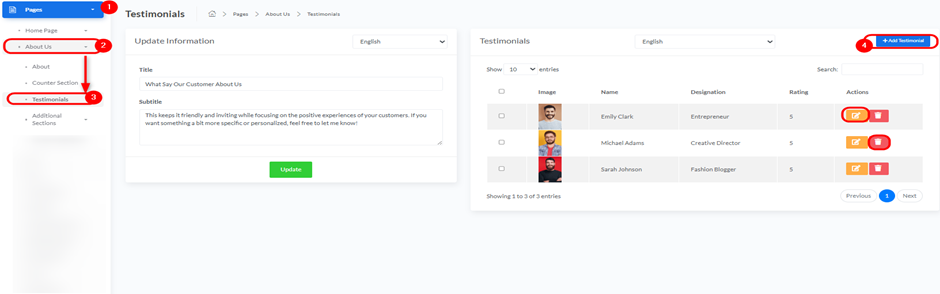
When you click the “+Add Testimonial” button, a pop-up window will appear for adding new testimonial details:
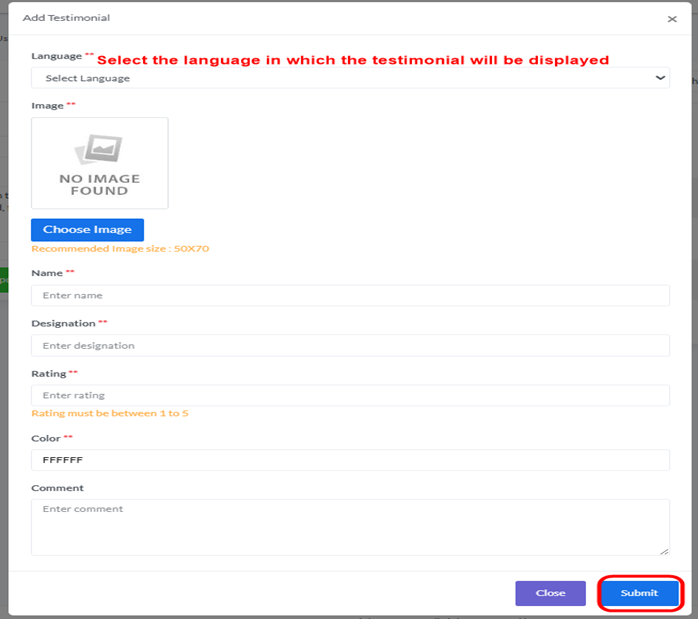
- Language:
- Select the language in which the testimonial will be displayed.
- Image:
- Upload the customer’s image by clicking the “Choose Image” button.
- The recommended image size is
50X70.
- Name:
- Enter the customer’s name.
- Designation:
- Enter the customer’s designation or role (e.g., “Entrepreneur”).
- Rating:
- Enter the customer’s rating as a numerical value (must be between 1 and 5).
- Color:
- Enter a color code (e.g.,
FFFFFF) to define the color of the testimonial text.
- Enter a color code (e.g.,
- Comment:
- Enter the actual testimonial text here.
- Close Button: Click “Close” to cancel adding the testimonial.
- Submit Button: Click “Submit” to save the new testimonial.


