
This section allows you to define your website’s visual design and interface by selecting one of the available themes. A theme determines the overall look, colors, fonts, and layout of elements on your site.
Accessing Themes: From the “Site Settings” menu, select “Themes”.
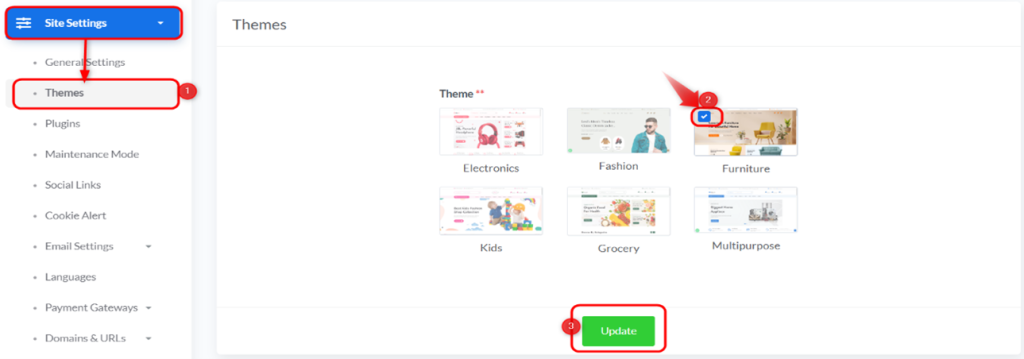
Selecting a Theme:
- Description: This section displays previews of various ready-to-use design themes you can choose from. Each theme is designed to suit different types of stores or websites.
- Available Themes (as per the image):
- Electronics: A theme specifically designed for electronics stores.
- Fashion: An ideal theme for fashion and clothing stores.
- Furniture: A suitable theme for furniture and home goods stores.
- Kids: A theme geared towards children’s products or stores.
- Grocery: A theme designed for grocery stores and food products.
- Multipurpose: A flexible theme that can be adapted for a wide range of purposes and stores.
- How to Select:
- Review the previews of the available themes.
- To add a theme, click its “Choose” button.
- To set a theme, click the theme you wish to use. A blue check-mark (√) will appear on the currently selected theme, as shown on the “Fashion” theme in the image.
Saving Changes: After choosing your desired theme, click the “Update” button at the bottom of the page to apply the new theme to your website. Your website’s appearance and design will change immediately based on your selection.


