
Accessing Languages: From the “Site Settings” menu, select “Languages”.
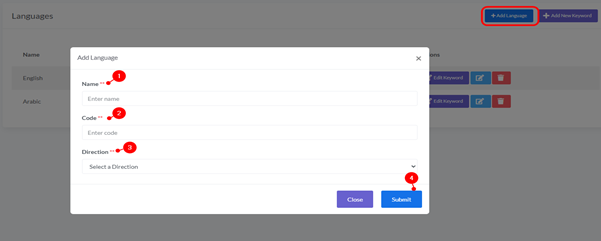
1. Add Language:
- Description: To add a new language to your website.
- How to Add: Click the “+ Add Language” button located in the top right corner of the Languages section. (This will typically open a form to enter the language name, code, and possibly other options).
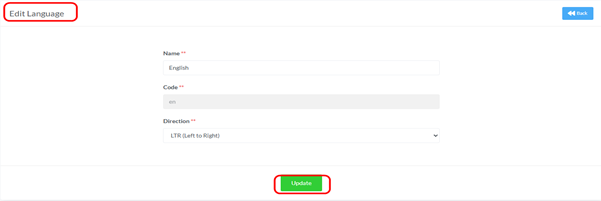
2. Edit Language:
- Description: To edit the language details themselves (such as its name or code).
- How to Edit: Click the “Edit” button (folder with pencil icon) next to the language.
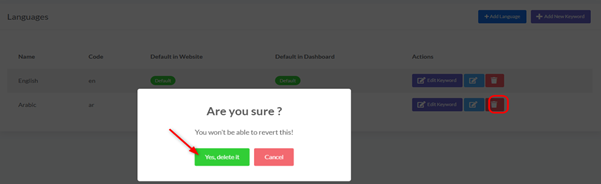
3. Delete Language:
- Description: To remove a language from your website.
- How to Delete: Click the “Delete” button (trash can icon) next to the language you wish to delete.
- Note: The default language cannot be deleted.
Important Notes:
- When adding new languages or editing keywords, you may need to clear your website’s cache for the changes to appear immediately.
- Ensuring accurate translations is crucial for providing a good user experience in multiple languages.


