
Access: From “Coupons”, select “ +Add”.
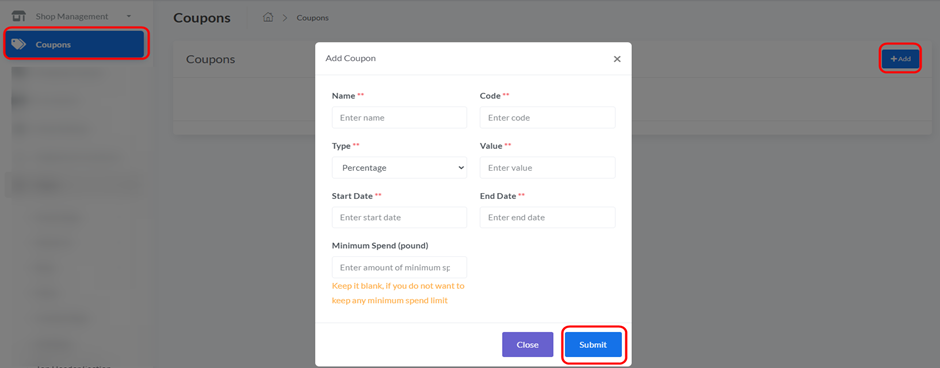
When you click “+ Add,” an “Add Coupon” pop-up window will appear, requiring you to fill in the following details:
- Name: Enter a name for the coupon.
- Code: Enter the code that will be used to apply the discount.
- Type: Select the type of discount (e.g., “Percentage”).
- Value: Enter the value of the discount (e.g., “10” for 10% or $10 depending on the type).
- Start Date: Enter the start date for the coupon’s validity.
- End Date: Enter the end date for the coupon’s validity.
- Minimum Spend (USD): Enter the minimum amount of spending in USD required for the coupon to be applied. If you do not want to keep any minimum spend limit, leave it blank.
After filling in all the details, you can click “Submit” to create the coupon, or “Close” to cancel the operation.


