1.5.4.1. Add Physical Product #
This section allows you to add physical products (which require actual shipping) to your store.
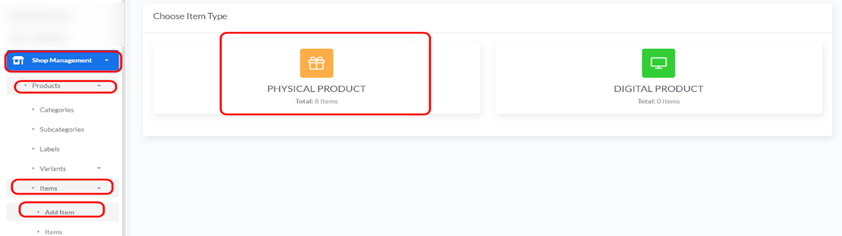
Access: From “Shop Management” > “Items” >”+ Add Item” and selecting “PHYSICAL PRODUCT” from the “Choose Item Type” screen.
Required Fields for Adding a Physical Product:
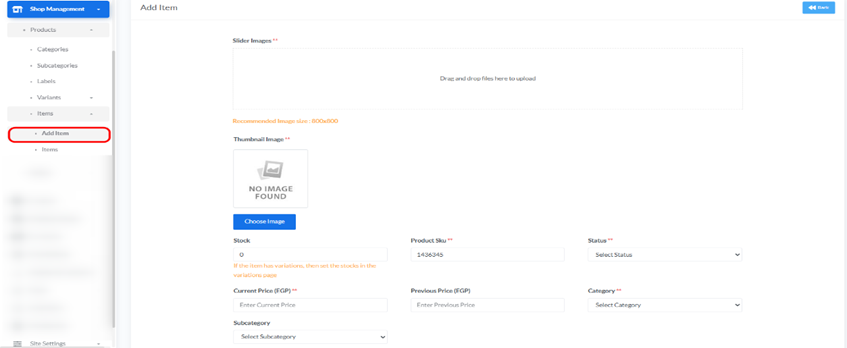
- Slider Images:
- Description: These are multiple images that will be displayed in the product image gallery on the product page. You can drag and drop files here or click to upload them.
- Recommended Size: 800×800 pixels.
- Thumbnail Image:
- Description: This is the main product image that will appear in product listings and general pages.
- How to Upload: Click “Choose Image” to upload the thumbnail image.
- Type:
- Description: This will be automatically set to “Physical” since you selected “PHYSICAL PRODUCT”.
- Current Price ():∗∗∗∗∗Description:∗∗EnterthecurrentsellingpriceoftheproductinUSD.5.∗∗PreviousPrice():
- Description: (Optional) Enter a previous price for the product if there was a special offer or discount, allowing for a discounted price display.
- Product Size:
- Description: Enter the product size (e.g., dimensions or any relevant size information).
- Stock:
- Description: Enter the current quantity of this product available in stock.
- Important Note: If the product has variations (like different sizes or colors), you must set the stock for each variation individually in the Variations section.
- Status:
- Description: Select the product status from the dropdown list (e.g., “Active” to be visible to customers, or “Inactive” to hide it).
- Category:
- Description: Choose the main category to which the product belongs from the dropdown list.
- Subcategory:
- Description: (Optional) Choose the subcategory for the product from the dropdown list, which will be available based on the category you selected.
- Product Label:
- Description: Select an existing label (such as “New” or “Hot”) to apply to the product from the dropdown list.
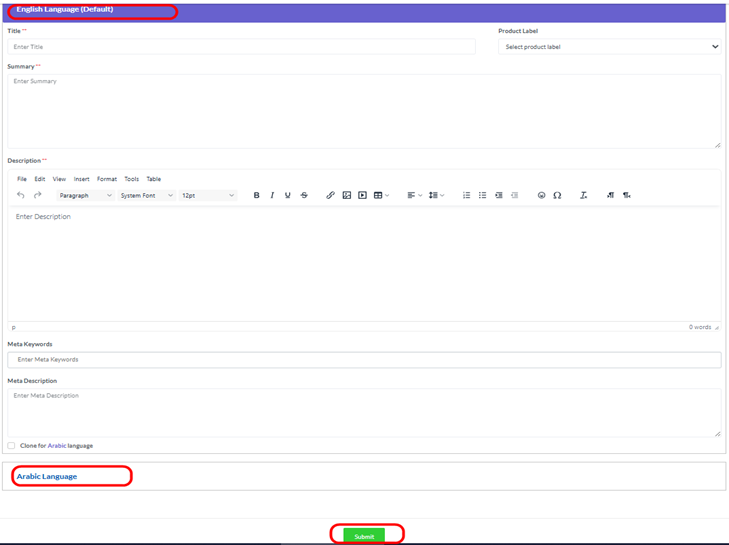
- English Language (Default) Section:
- Title: Enter the product title in English.
- Summary: Enter a brief summary of the product in English.
- Description: Enter a detailed description of the product using the rich text editor.
- Meta Keywords: Enter keywords for Search Engine Optimization (SEO).
- Meta Description: Enter a meta description for Search Engine Optimization (SEO).
- Arabic Language Section:
- Description: If multiple languages are enabled, you can click “Clone for Arabic language” to copy content from the English section or manually enter translations for the title, summary, description, meta keywords, and meta description in Arabic.
- Submit:
- Description: After entering all necessary details, click the “Submit” button to save the new physical product.