
This section allows you to view and manage various email templates that your website sends automatically in specific scenarios (e.g., email verification, order confirmation, password reset).
Access: From “Email Settings”, select “Mail Templates”.
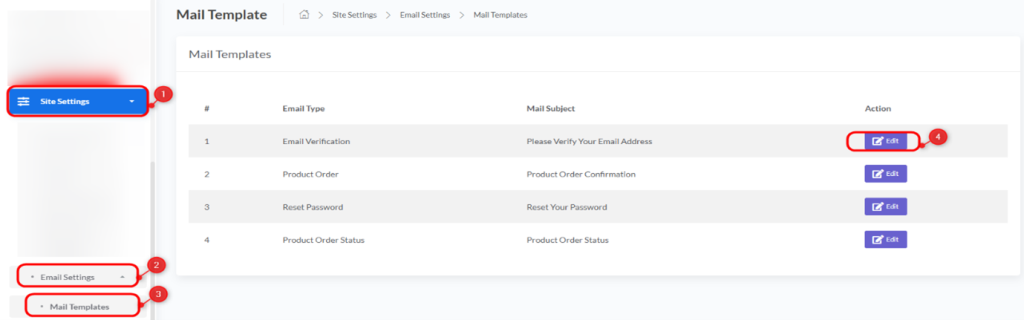
You will see a list of available templates, each containing:
- #: The serial number of the template.
- Email Type: Describes the purpose of the email (e.g., Email Verification, Product Order, Reset Password).
- Mail Subject: The default subject line of the email that will appear to the recipient.
- Action: A column containing an “Edit” button for each template.
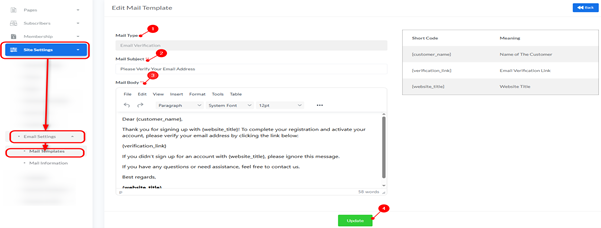
How to Edit an Email Template:
- Find the template you wish to edit in the list.
- Click the “Edit” button (pencil icon) next to the template.
- A new page will open where you can modify the template’s content and subject. (The content of the edit page is not visible in this image, but it usually contains fields to change the subject and message body using a text editor).
- After making your modifications, ensure you save them on the template’s specific edit page.
Examples of Templates Available in the Image:
- Email Verification: Used to send email verification messages to new users.
- Product Order: Used to send order confirmation after a purchase is completed.
- Reset Password: Used to send a password reset link to users.
- Product Order Status: Used to inform the customer about their order status updates.


