
These gateways allow you to define payment methods that do not require immediate online processing, such as bank transfers, cash on delivery, or payments via money transfer companies.
Access: From “Payment Gateways”, select “Offline Gateways”.
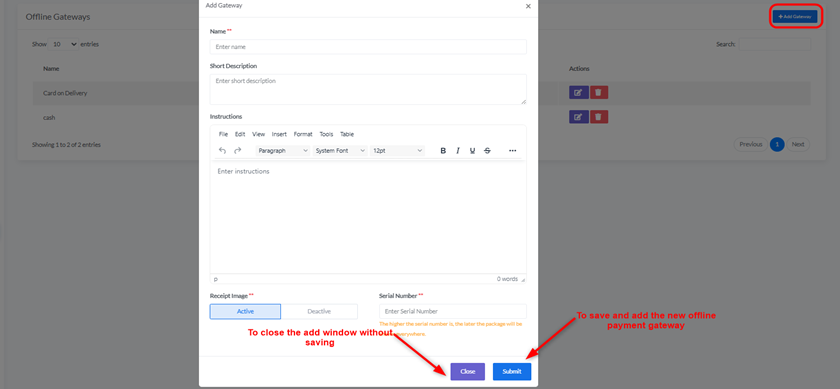
- Add Gateway:
- Description: To add a new offline payment method.
- How to Add: Click the “+ Add Gateway” button located in the top right corner.
“Add Gateway” Screen: When you click “Add Gateway,” a popup window or page will appear for entering the details of the new gateway:
- Name: The name of the payment method that will appear to customers (e.g., “Bank Transfer”, “Cash on Delivery”, “Vodafone Cash”).
- Short Description: A brief description of this payment method.
- Instructions: Space to write detailed instructions for the customer to complete the payment (e.g., bank account details, phone number for money transfer). You can use the text editor to format the instructions.
- Receipt Image: (In the image, it appears as an activate/deactivate option, not an image upload). This might be an option to request a receipt image from the customer.
- Active: To request a receipt image.
- Deactive: To not request a receipt image.
- Serial Number: To determine the display order of this payment method among other payment gateways. The higher the number, the later the method will appear.
- Close: To close the add window without saving.
- Submit: To save and add the new offline payment gateway.
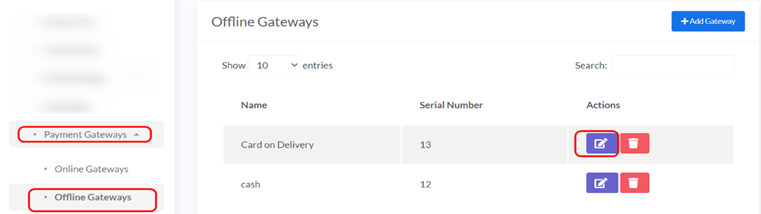
Managing Existing Offline Gateways: In the “Offline Gateways” list, you will find the payment methods you have added:
Delete: Trash can icon to delete the gateway.
Name: The name of the gateway (e.g., “mob”).
Serial Number: The number you specified.
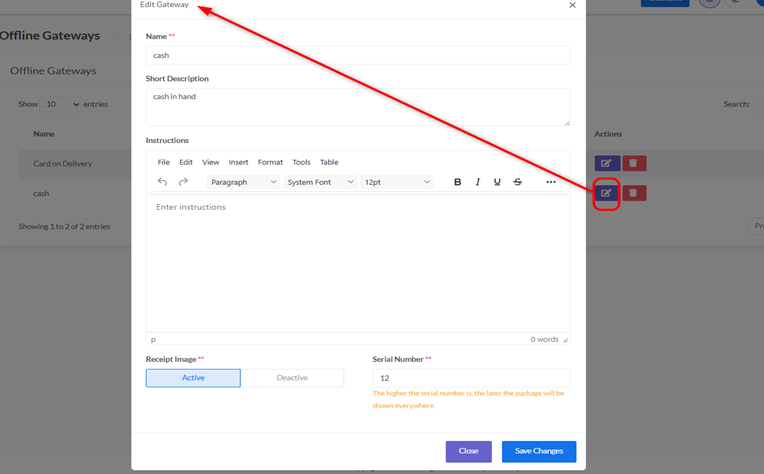
Actions:
Edit: Pencil icon to edit the gateway details (this will open the same “Add Gateway” form with existing data).


