
This section allows you to manage additional functionalities and features for your website, such as analytics tools, live chat, social logins, and more.
Accessing Plugins: From the “Site Settings” menu, select “Plugins”.
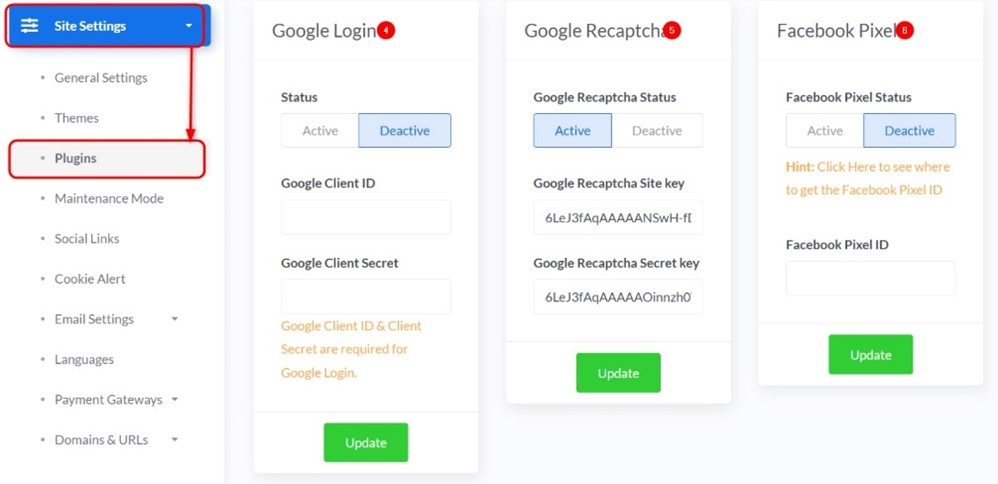
Overview of Plugin Management:
For each plugin, you will find the following options:
- Status: Allows you to activate (Active) or deactivate (Deactive) the plugin.
- Settings Fields: Fields for entering keys, IDs, or any other information required for the plugin to function correctly.
- Update Button: Must be clicked to save any changes you make to the plugin’s settings.
Individual Plugins:
1. Disqus
- Description: An external commenting system that allows visitors to comment on your website’s content.
- Disqus Status: Active / Deactive.
- Disqus Short-name: Enter your Disqus short-name here. You can obtain it from your Disqus account settings.
- Save: Click “Update” to save changes.
2. Google Analytics
- Description: A Google analytics tool to track visitor behavior on your site and gather statistics.
- Google Analytics Status: Active / Deactive.
- Measurement ID: Enter your Measurement ID (usually starts with “G-“). You can find it in your Google Analytics account (GA4).
- Save: Click “Update” to save changes.
3. Tawk.to
- Description: A free live chat service that enables you to communicate with your website visitors in real-time.
- Tawk.to Status: Active / Deactive.
- Important Note: If you activate Tawk.to, the WhatsApp button will be automatically disabled.
- Tawk.to Property ID: Enter your Property ID from your Tawk.to account.
- Tawk.to Widget ID: Enter your Widget ID from your Tawk.to account.
- Save: Click “Update” to save changes.
4. Google Login
- Description: Allows users to log in to your website using their Google accounts.
- Status: Active / Deactive.
- Google Client ID: Enter your application’s Google Client ID.
- Google Client Secret: Enter your application’s Google Client Secret.
- Note: You will need to set up a project in Google Cloud Console to obtain these credentials.
- Save: Click “Update” to save changes.
5. Google Recaptcha
- Description: A Google security tool to protect your website from spam and bots by verifying that the user is human and not an automated program.
- Google Recaptcha Status: Active / Deactive.
- Google Recaptcha Site key: Enter your site key.
- Google Recaptcha Secret key: Enter your secret key.
- Note: You will get these keys when setting up Recaptcha in Google.
- Save: Click “Update” to save changes.
6. Facebook Pixel
- Description: A Facebook analytics tool to track visitor activity on your website, measure ad effectiveness, and improve ad targeting.
- Facebook Pixel Status: Active / Deactive.
- Facebook Pixel ID: Enter your Facebook Pixel ID.
- Hint: Click the link below the field to learn where to get your Facebook Pixel ID.
- Save: Click “Update” to save changes.
7. WhatsApp Chat Button
- Description: Allows your website visitors to start a WhatsApp conversation with you directly via a button displayed on the site.
- Status: Active / Deactive.
- Important Note: If you activate the WhatsApp button, Tawk.to will be automatically disabled.
- WhatsApp Number: Enter your WhatsApp phone number with the country code (e.g., +201234567890).
- WhatsApp Header Title: The text that will appear as the header title in the WhatsApp chat popup.
- WhatsApp Popup Message: The default message that will appear for the customer before they send it to you via WhatsApp.
- Popup:
- Active: To display a popup window with the chat button.
- Deactive: To hide the popup window and only show the button.
- Save: Click “Update” to save changes.
General Note: Always ensure that you have entered the correct information (IDs, keys, numbers) for each plugin to ensure it functions properly.


