
is section is used to generate and view sales reports for your Ecommet store. It provides an overview of key sales metrics and a detailed list of orders within a specified date range.
Access: From “Shop Management” > “Orders,” select “Sales Report”.
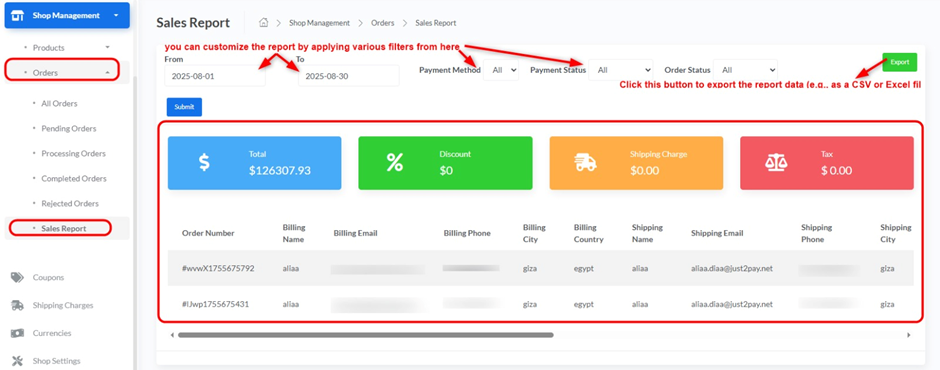
Report Filters and Export:
At the top of the Sales Report page, you can customize the report by applying various filters:
- From: Enter the start date for your report (e.g., “2025-02-02”).
- To: Enter the end date for your report (e.g., “2025-06-01”).
- Payment Method: Select a specific payment method from the drop-down (e.g., “All” for all payment methods).
- Payment Status: Filter by payment status (e.g., “All” for all payment statuses).
- Order Status: Filter by order status (e.g., “All” for all order statuses).
- Submit: Click this button to apply the selected filters and generate the report.
- Export: Click this button to export the report data (e.g., as a CSV or Excel file).
Sales Overview:
Below the filters, you will see a summary of key sales metrics for the selected period:
- Total: The total revenue generated (e.g., “$8085.02”).
- Discount: The total amount of discounts applied (e.g., “$2.50”).
- Shipping Charge: The total shipping fees collected (e.g., “$80.00”).
- Tax: The total tax collected (e.g., “$1320.84”).
Detailed Sales Data:
The lower part of the page displays a detailed list of orders that match your filter criteria, including:
- Order Number: The unique identifier for each order.
- Billing Name: The name of the customer who placed the order.
- Billing Email: The email address of the customer.
- Billing Phone: The phone number of the customer.
- Billing City: The billing city of the customer.
- Billing Country: The billing country of the customer.
- Shipping Name: The name of the recipient for shipping.
- Shipping Email: The email of the recipient for shipping.


