
This section allows you to add and manage links to your social media accounts, which can be displayed on your website to enable visitors to connect with you across different platforms.
Accessing Social Links: From the “Site Settings” menu, select “Social Links”.
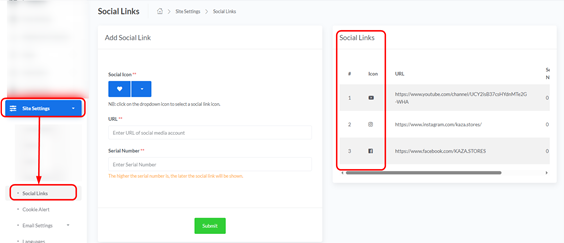
5.1 Add Social Link:
This section is used to add a new social media account link.
- Social Icon:
- Description: To select the icon for the social media platform you are adding (e.g., Facebook, Twitter, Instagram, etc.).
- How to Choose: Click the dropdown icon (represented by a heart in the image) to select the appropriate icon for the social media platform.
- URL:
- Description: Enter the full URL to your social media account here.
- Example: https://www.facebook.com/yourpage or https://www.twitter.com/yourhandle
- Serial Number:
- Description: To determine the display order of social links on your website. The higher the serial number, the later the link will be shown (lower priority).
- How to Set: Enter a number in this field (e.g., 10, 20, 30, etc.).
- Submit:
- After filling in all fields, click the “Submit” button to add the new social link.
5.2 Social Links (Right Panel):
- Description: This section will display all the social links you have added.
- Current Status: In the provided image, “NO SOCIAL LINK FOUND” is displayed, meaning no links have been added yet.
- Management: Once links are added, you will be able to see them here, and options to edit or delete them will typically become available (usually appear after links are added).
Important Notes:
- Ensure you enter the correct URL for your social media account to ensure it functions properly.
- Use the serial number to organize the display order of links on your website as you prefer.


