
Overview: This section allows you to customize the content of the top header section displayed at the very top of your website, including the support icon, support text, and header middle text.
Access: To access the “Top Header Section” settings, navigate to “Pages” -> “Top Header Section” in your dashboard.
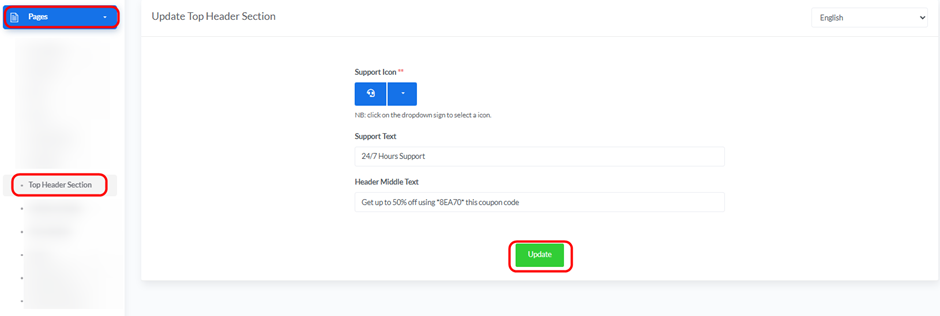
Updating Top Header Section: The “Update Top Header Section” displays fields for modifying the section content:

- Language: Use the drop-down menu in the top right corner to select the language for which you want to update the top header section information.
- Support Icon:
- Click on the dropdown icon to select an icon for customer support.
- Support Text:
- Enter the support text (e.g., “24/7 Hours Support”).
- Header Middle Text:
- Enter the text to be displayed in the middle of the header (e.g., “Get up to 50% off using ‘BEA70’ this coupon code”).
- Update Button:
- After making the necessary changes, click the green “Update” button to save the information.


